
1. Introducere
This manual provides comprehensive instructions for the installation, operation, and maintenance of the HP Aruba 2930F 24G 4SFP+ Switch (Model JL253A). Please read this manual thoroughly before using the device to ensure proper setup and optimal performance. Retain this manual for future reference.
2. Produs terminatview
The HP Aruba 2930F 24G 4SFP+ Switch is a high-performance network switch designed for enterprise edge deployments. It features 24 Gigabit Ethernet ports and 4 SFP+ ports for high-speed uplinks, providing reliable and secure connectivity.

Figura 2.1: Față view of the HP Aruba 2930F 24G 4SFP+ Switch, showing 24 RJ45 Gigabit Ethernet ports, 4 SFP+ uplink ports, and LED indicators.

Figura 2.2: Înclinat view of the HP Aruba 2930F 24G 4SFP+ Switch, highlighting its compact design suitable for rack mounting.
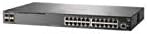
Figura 2.3: lateral view of the HP Aruba 2930F 24G 4SFP+ Switch, showing ventilation slots for heat dissipation.
3. Configurare
3.1 Despachetarea și verificarea conținutului
Carefully unpack the switch and verify that all components are present. The package should include:
- HP Aruba 2930F 24G 4SFP+ Switch (Model JL253A)
- Cablu de alimentare
- Set de montare în rack
- Cablul consolei
Dacă lipsesc sau sunt deteriorate articolele, contactați imediat furnizorul.
3.2 Instalare fizică
- Montare pe rack: Use the provided rack-mount kit to secure the switch in a standard 19-inch equipment rack. Ensure adequate ventilation around the switch.
- Conexiune de alimentare: Connect the power cable to the switch's power input and then to a grounded AC power outlet.
- Conexiune inițială la rețea: Connect a computer to the switch's console port using the console cable for initial configuration, or connect to any RJ45 port for network access if DHCP is available.
Ensure all cables are securely connected and routed to prevent accidental disconnections.
4. Instrucțiuni de utilizare
4.1 Pornirea și pornirea inițială
Once the power cable is connected, the switch will automatically power on. Observe the LED indicators on the front panel. The Power LED should illuminate, indicating the device is receiving power. Other LEDs will indicate port status and activity.
Conectivitate 4.2 Port
- RJ45 Ports (10/100/1000BASE-T): Connect standard Ethernet cables (Cat5e or higher) to these ports for connecting network devices such as computers, servers, and other switches. These ports support auto-negotiation for speed and duplex settings.
- SFP+ Ports (10 Gigabit Ethernet): Use compatible SFP+ transceivers and fiber optic cables for high-speed uplinks to core switches or servers.
- PoE+ (Alimentare prin Ethernet Plus): If your model supports PoE+, these ports can provide power to compatible devices like IP phones, wireless access points, and security cameras, eliminating the need for separate power supplies.
4.3 Indicatori LED
The front panel LEDs provide visual status of the switch and its ports:
- LED de alimentare: Indicates power status (On/Off).
- LED de eroare: Indicates system errors or malfunctions.
- LED-uri Port Link/Activity: Indicate link status (solid green for link) and network activity (flashing green). Different colors or patterns may indicate different speeds (e.g., amber for 100Mbps, green for 1Gbps). Refer to the device's specific LED guide for detailed interpretation.
5. Întreținere
5.1 Curățare
Regularly clean the exterior of the switch with a soft, dry cloth. Do not use liquid or aerosol cleaners. Ensure ventilation openings are free from dust and obstructions to maintain proper airflow.
5.2 de actualizări de firmware
Periodically check the Hewlett Packard (Aruba) support website for firmware updates. Keeping the firmware up-to-date ensures optimal performance, security, and access to new features. Follow the instructions provided with the firmware update package carefully.
6. Depanare
This section addresses common issues you might encounter with your HP Aruba 2930F switch.
- Fără putere:
- Verify the power cable is securely connected to both the switch and a working power outlet.
- Verificați priza cu un alt dispozitiv pentru a vă asigura că funcționează.
- Nicio legătură pe un port:
- Asigurați-vă că cablul Ethernet este conectat corect la ambele capete.
- Încercați un alt cablu Ethernet.
- Test the connected device with another port or switch to isolate the issue.
- Verificați dacă dispozitivul conectat este pornit și funcționează corect.
- Slow Network Connection:
- Verificați dacă există trafic excesiv în rețea sau blocaje.
- Ensure cables are Cat5e or higher for Gigabit speeds.
- Verify duplex settings on connected devices match the switch's auto-negotiated settings.
- Consider updating the switch firmware.
For more advanced troubleshooting or persistent issues, consult the official Hewlett Packard (Aruba) support documentation or contact technical support.
7. Specificații
| Caracteristică | Valoare |
|---|---|
| Marca | HEWLETT PACKARD |
| Numărul de model | JL253A |
| Greutatea articolului | 2.4 kilograme (5.28 de lire sterline) |
| Dimensiunile produsului (Lxlxh) | 17.42 x 7.88 x 1.73 inci |
| Voltage | 200 volți |
| Tip de interfață | RJ45, SFP+, PoE+ |
| Rata de transfer de date | 100 Megabits Per Second (per port, supports Gigabit on RJ45 and 10 Gigabit on SFP+) |
| RAM | 1024 MB |
| Numărul de porturi | 24 Gigabit Ethernet, 4 SFP+ (Total 28 logical ports) |
| Componente incluse | Power cable, rack-mount kit, console cable |
| Culoare | Negru |
| Dispozitive compatibile | Desktop (general network devices) |
Note: Data Transfer Rate of "100 Megabits Per Second" may refer to a baseline or specific port type; the switch supports Gigabit Ethernet on RJ45 ports and 10 Gigabit Ethernet on SFP+ ports.
8. Garanție și asistență
This HP Aruba 2930F 24G 4SFP+ Switch is manufactured by HEWLETT PACKARD. For warranty information, please refer to the warranty card included with your product or visit the official Hewlett Packard Enterprise (Aruba) website. Technical support and additional resources can be found on their support portal.
Pentru asistență, vă rugăm să vizitați: Asistență pentru rețelele Aruba