
1. Introducere
This manual provides instructions for setting up, operating, and maintaining your D-Link Wi-Fi AC750 Dual Band Router (DIR-813). The DIR-813 is designed to deliver high-speed wireless connectivity for your home network, supporting both 2.4 GHz and 5 GHz bands for optimal performance.
Caracteristicile cheie includ:
- Wireless AC750 Technology: Optimized performance for HD video streaming, fast file transfers, and lag-free video chatting.
- Dual Band Performance: Up to 300Mbps (2.4GHz) + 433Mbps (5GHz) for fast wireless speeds and reduced interference.
- Compatibilitate inversă: Works with older 802.11a/b/g/n devices.
- Conectivitate prin cablu: Four Fast Ethernet ports for connecting wired devices.
- High-Performance Antennas: Three external antennas for maximum range.
2. Conținutul pachetului
Verificați dacă pachetul dvs. conține următoarele articole:
- D-Link Wi-Fi AC750 Dual Band Router (DIR-813)
- Adaptor de alimentare
- Cablu Ethernet
- Quick Installation Guide (not included in this digital manual)
If any of the above items are missing or damaged, please contact your local D-Link reseller.
3. Hardware terminatview
3.1 Panoul frontal
The front panel of the DIR-813 router features LED indicators that provide status information.
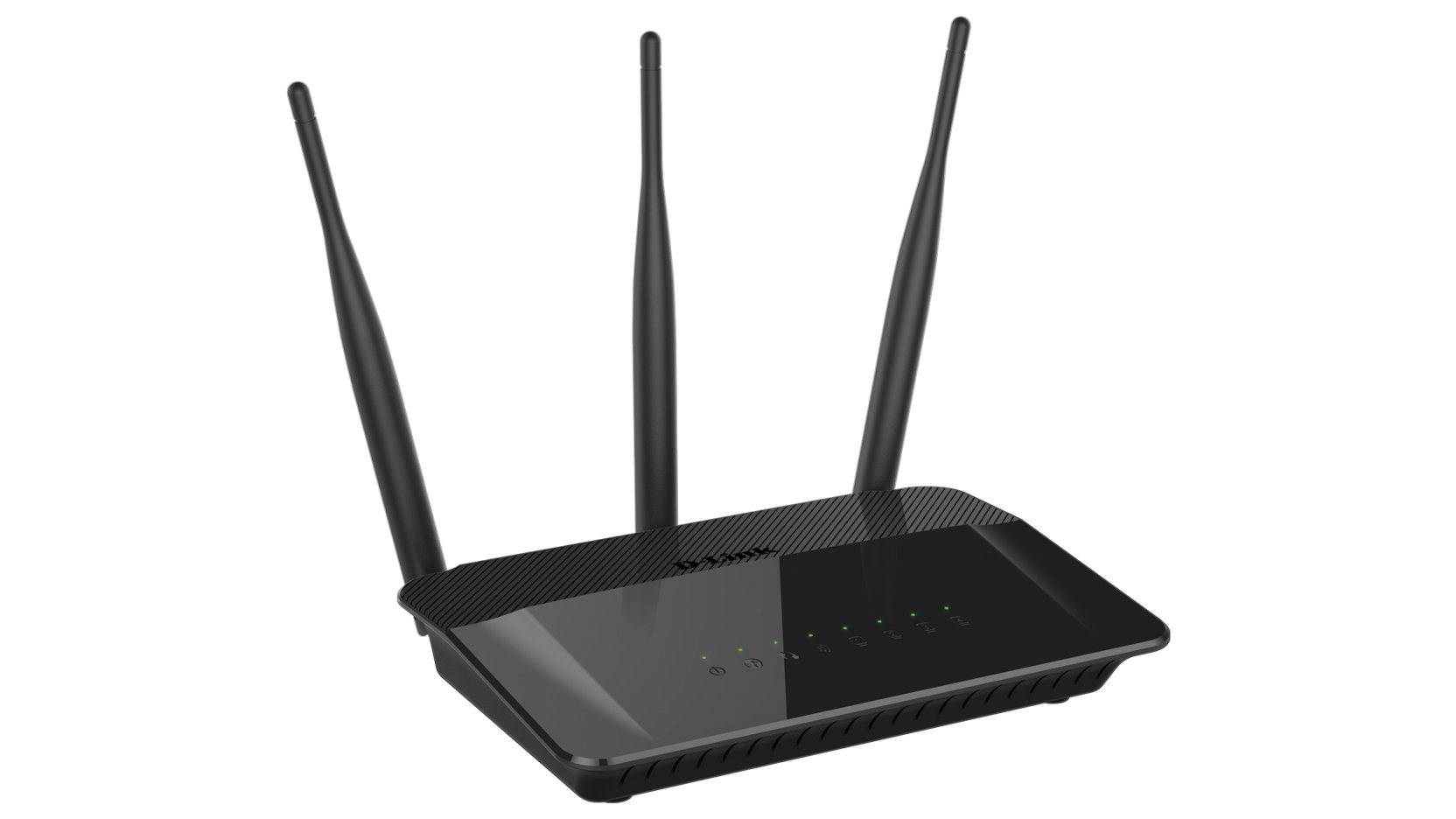
Figura 1: Faţă view of the D-Link DIR-813 router. This image shows the router's top surface with three external antennas and a row of LED indicators for power, internet, and wireless status.
- LED de alimentare: Indică starea de alimentare.
- LED Internet: Indică starea conexiunii la internet.
- WLAN LEDs (2.4GHz/5GHz): Indicate wireless activity for each band.
- LED-uri LAN: Indică activitatea pe porturile Ethernet cu fir.
3.2 Panoul din spate
The rear panel contains all the physical connection ports and buttons.
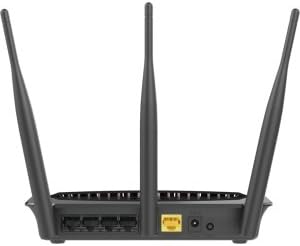
Figura 2: Spate view of the D-Link DIR-813 router. This image displays the back of the router, showing the power input, WAN port (yellow), four LAN ports, and a WPS/Reset button.
- Stecher: Conectați aici adaptorul de alimentare inclus.
- Port WAN (galben): Conectați modemul la acest port folosind un cablu Ethernet.
- Porturi LAN (1-4): Connect your wired devices (computers, gaming consoles, etc.) to these ports.
- Buton WPS/Resetare:
- Press and hold for 2 seconds to activate WPS (Wi-Fi Protected Setup).
- Apăsați și mențineți apăsat timp de 10 secunde pentru a efectua o resetare din fabrică.
4. Configurare
4.1 Înainte de a începe
Ensure you have an active internet connection from your Internet Service Provider (ISP) and a modem (if required by your ISP).
4.2 Instalare hardware
- Oprire: Disconnect the power from your modem and router (if replacing an old router).
- Conectați modemul: Connect an Ethernet cable from your modem's Ethernet port to the yellow WAN port on the back of your DIR-813 router.
- Conectare alimentare: Connect the included power adapter to the power connector on the router and then plug it into a power outlet.
- Pornire: Power on your modem first, wait for it to fully boot up (usually indicated by stable internet lights). Then, power on your DIR-813 router.
- Verificați LED-urile: Wait for the Power LED and Internet LED on the router's front panel to turn solid.
4.3 Configurație inițială (Web-based Setup)
Puteți configura routerul folosind un web browser.
- Conectați-vă la router:
- Cu fir: Conectați un cablu Ethernet de la unul dintre porturile LAN ale routerului la portul Ethernet al computerului.
- Fără fir: Connect to the default Wi-Fi network name (SSID) printed on the label at the bottom of your router. The default Wi-Fi password (WPA Key) is also on this label.
- Deschide Web Browser: Deschide a web browser (de exemplu, Chrome, Firefox, Edge) și tastați
http://dlinkrouter.localor192.168.0.1în bara de adrese. - Log in: Numele de utilizator implicit este
admin. Leave the password field blank. Click Log in. - Executați expertul de configurare: Follow the on-screen instructions of the D-Link Setup Wizard to configure your internet connection and wireless settings. It is recommended to change the default Wi-Fi name (SSID) and password for security.
- Salvare setări: After completing the wizard, save your settings.
4.4 Conectarea dispozitivelor
Once the router is configured, you can connect your devices.
- Dispozitive cu fir: Connect computers, gaming consoles, or other network devices to the available LAN ports using Ethernet cables.
- Dispozitive wireless: Connect smartphones, tablets, laptops, and other Wi-Fi enabled devices to your new Wi-Fi network using the SSID and password you configured.
5. Utilizarea routerului
Accesați routerul webinterfață bazată pe (http://dlinkrouter.local or 192.168.0.1) to manage its settings.
5.1 Setări wireless
You can modify the Wi-Fi network name (SSID), password, and security type for both 2.4 GHz and 5 GHz bands.
- Navigați la Setări > Wireless în web interfata.
- Select the 2.4 GHz or 5 GHz band to modify its settings.
- Schimbați Nume Wi-Fi (SSID) şi Parola Wi-Fi după cum se dorește.
- Asigura WPA2-PSK or WPA2/WPA3 Mixed Mode is selected for optimal security.
- Clic Salva pentru a aplica modificări.
5.2 Wi-Fi pentru oaspeți
Create a separate Wi-Fi network for guests to provide internet access without giving them access to your main network.
- Du-te la Settings > Guest Wi-Fi.
- Enable the Guest Wi-Fi network.
- Set a unique SSID and password for the guest network.
- Configure access restrictions if needed (e.g., internet only).
- Clic Salva.
5.3 Setări de securitate
Manage firewall rules, VPN passthrough, and other security features.
- Acces Features > Firewall to configure firewall rules.
- Review Advanced > Port Forwarding if you need to open specific ports for applications or gaming.
5.4 Controale parentale
Control internet access for specific devices or users on your network.
- Navigați la Features > Parental Control.
- Set up schedules for internet access or block specific websites for selected devices.
- Clic Salva after making changes.
6. Întreținere
6.1 Actualizare firmware
Keeping your router's firmware up to date ensures optimal performance and security.
- Download the latest firmware for your DIR-813 model from the official D-Link support website-ul.
- Conectați-vă la router web interfata.
- Du-te la Management > Firmware Update.
- Navigați la firmware-ul descărcat file and follow the on-screen instructions to upload and update.
- Do not power off the router during the firmware update process.
6.2 Configurarea copierii de rezervă și a restaurării
Save your router's configuration settings to a file, which can be restored later if needed.
- Conectați-vă la router web interfata.
- Navigați la Management > System > Configuration Backup and Restore.
- Clic Backup pentru a salva configurația curentă pe computer.
- Pentru a restaura, faceți clic pe Răsfoiește, select your saved configuration file, și faceți clic Restabili.
6.3 Resetare din fabrică
A factory reset restores the router to its original default settings. This will erase all custom configurations.
- Resetare software: Conectați-vă la router web interfață, accesați Management > System > Restore to Factory Defaults, și confirmați.
- Resetare hardware: Cu routerul pornit, folosiți o agrafă de birou pentru a apăsa și menține apăsat WPS/Resetare button on the rear panel for 10 seconds. Release the button when the Power LED starts blinking. The router will restart with factory defaults.
7. Depanare
7.1 Fără conexiune la internet
- Verificați dacă LED Internet on the router is solid green. If not, ensure the Ethernet cable from your modem is securely connected to the router's yellow WAN port.
- Restart your modem and then your router.
- Verificați dacă conexiunea ISP-ului dvs. este activă.
- Conectați-vă la router web interface and check the internet connection status. Run the setup wizard again if necessary.
7.2 Nu mă pot conecta la Wi-Fi
- Ensure the router's WLAN LEDs sunt pornite.
- Verify you are using the correct Wi-Fi network name (SSID) and password. These are case-sensitive.
- Try restarting your wireless device and the router.
- If you recently changed Wi-Fi settings, ensure your device has forgotten the old network and is trying to connect to the new one.
7.3 Viteză wireless redusă
- Ensure your devices are connected to the appropriate band (5 GHz for faster speeds, 2.4 GHz for better range).
- Reduce interference by moving the router away from other electronic devices (cordless phones, microwaves).
- Consider changing the wireless channel in the router's settings to a less congested one.
- Ensure your device's wireless adapter supports 802.11ac for optimal performance.
7.4 Forgot Router Login Password
If you forgot the password for the router's web interface, you will need to perform a factory reset. Refer to section 6.3 for instructions. After a factory reset, the username will be admin and the password field will be blank.
8. Specificații
| Caracteristică | Descriere |
|---|---|
| Marca | D-Link |
| Numele modelului | DIR-813 |
| standard wireless | 802.11ac (backward compatible with a/b/g/n) |
| Clasa de bandă de frecvență | Dual-Band (2.4 GHz și 5 GHz) |
| Viteza wireless | Up to 300Mbps (2.4GHz) + 433Mbps (5GHz) = AC750 |
| Porturi Ethernet | 4 x Fast Ethernet LAN, 1 x Fast Ethernet WAN |
| Antene | 3 x Antene externe de înaltă performanță |
| Caracteristica specială | WPS (Configurare protejată prin Wi-Fi) |
| Tehnologia de conectivitate | WiFi, Cu fir |
| Culoare | Negru |
| Greutatea articolului | 0.5 lire sterline |
| Utilizare recomandată | Acasă |
9. Garanție și asistență
For detailed warranty information, please refer to the warranty card included with your product or visit the official D-Link website-ul.
For technical support, product registration, or to download the latest firmware and documentation, please visit the D-Link support portal:
When contacting support, please have your router's model number (DIR-813) and serial number ready.