
D-Link G403/E
D-Link EAGLE PRO AI N300 4G Smart Router (Model G403/E) User Manual
Ghid complet pentru configurare, utilizare și întreținere
1. Introducere
This manual provides detailed instructions for the installation, configuration, and operation of your D-Link EAGLE PRO AI N300 4G Smart Router, Model G403/E. Please read this manual thoroughly before using the device to ensure proper setup and optimal performance.
The D-Link G403/E is a versatile 4G LTE Router designed to provide high-speed internet access via a SIM card, offering Cat 4 150 Mbps LTE speeds and WiFi N 300 Mbps for your local network. It includes multiple LAN ports and a WAN port for flexible connectivity.
2. Conținutul pachetului
Înainte de a continua instalarea, vă rugăm să verificați dacă pachetul conține următoarele elemente:
- D-Link EAGLE PRO AI N300 4G Smart Router (Model G403/E)
- Adaptor de alimentare
- Cablu Ethernet
- Ghid de instalare rapidă (Acest manual servește drept ghid detaliat)
- SIM Card Adapter (if applicable)
If any items are missing or damaged, please contact your retailer or D-Link support immediately.
3. Hardware terminatview
3.1 Panoul frontal

Figura 3.1: Față view of the D-Link G403/E router, showing the D-Link logo and LED indicators for Power, Internet, Wi-Fi, and Signal Strength.
The front panel of the router features several LED indicators that provide real-time status information:
- LED de alimentare: Indică starea de alimentare a dispozitivului.
- LED Internet: Shows the status of the internet connection (4G LTE or WAN).
- LED Wi-Fi: Indică starea rețelei wireless.
- LED-uri cu puterea semnalului: Afișează puterea semnalului 4G LTE.
3.2 Panoul din spate

Figura 3.2: Spate view of the D-Link G403/E router, displaying the SIM card slot, LAN ports, WAN port, power input, and power button.
The rear panel provides all the necessary connection ports and buttons:
- Slot card SIM: Introduceți cartela SIM 4G LTE aici.
- Porturi LAN (LAN1-LAN4): Four Fast Ethernet ports for connecting wired devices.
- Port WAN: One Fast Ethernet port for connecting to a traditional broadband modem (e.g., DSL/Cable) if not using 4G LTE.
- Power Input (12V 1A): Conectați adaptorul de alimentare furnizat aici.
- Buton de pornire / oprire: Folosit pentru a porni sau opri routerul.
- Buton de resetare: Un mic buton tip orificiu pentru restaurarea setărilor implicite din fabrică.
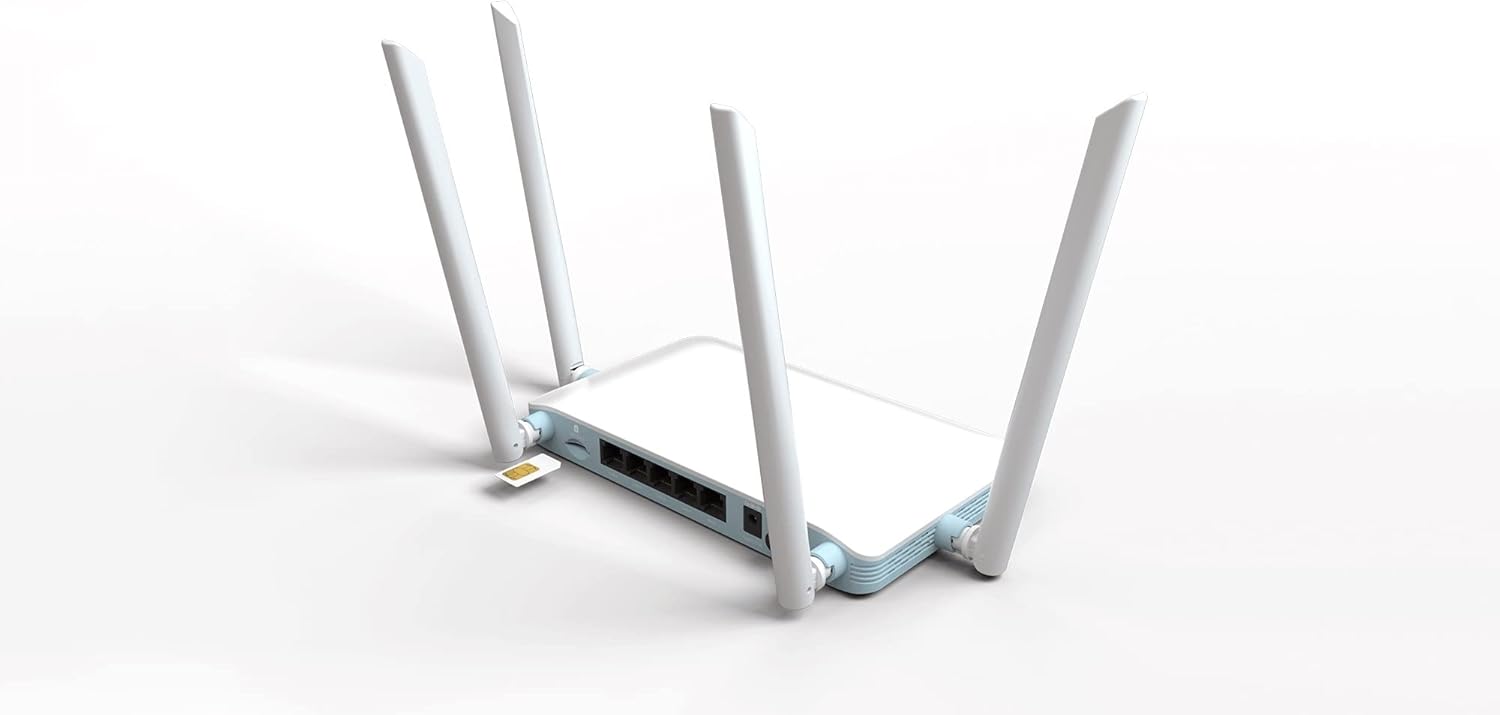
Figura 3.3: Detaliat view of the SIM card slot on the D-Link G403/E router, showing how a SIM card is inserted.
4. Configurare și instalare
4.1 Instalarea cartelei SIM
- Asigurați-vă că routerul este oprit.
- Localizați slotul pentru cartela SIM pe panoul din spate.
- Insert your standard-sized 4G LTE SIM card into the slot with the gold contacts facing down and the notched corner oriented correctly. Push until it clicks into place. If using a Nano or Micro SIM, ensure it is placed in a suitable adapter before insertion.
- To remove the SIM card, gently push it in until it clicks, then release, and it will eject.
4.2 Pornirea routerului
- Connect the provided power adapter to the Power Input port on the rear of the router.
- Plug the other end of the power adapter into a wall outlet or power strip.
- Press the Power On/Off button. The Power LED on the front panel should illuminate.
4.3 Configurație inițială (Web Interfață)
After powering on, you can access the router's web-based management interface for detailed configuration.
- Conectați-vă la router:
- Conexiune prin cablu: Connect an Ethernet cable from one of the LAN ports (LAN1-LAN4) on the router to your computer's Ethernet port.
- Conexiune wireless: On your computer or mobile device, connect to the default Wi-Fi network name (SSID) printed on the label on the bottom of the router. The default Wi-Fi password (WPA/WPA2 Key) is also on this label.
- Accesați Web Interfata: Deschide a web browser (de exemplu, Chrome, Firefox, Edge) și introduceți adresa IP implicită a routerului în bara de adrese. Aceasta este de obicei
192.168.0.1or192.168.1.1. Refer to the label on the bottom of your router for the exact IP address and default login credentials. - Log in: Enter the default username and password. The default username is usually
admin, and the password might beadmin,password, or blank. It is highly recommended to change the default password immediately after your first login for security purposes. - Urmați Expertul de configurare: The first time you log in, a setup wizard may guide you through basic configurations such as changing the administrator password, setting up the time zone, and configuring your internet connection (4G LTE or WAN).
- Configure 4G LTE Connection: If using a SIM card, the router should automatically detect your mobile network and configure the APN settings. If not, you may need to manually enter the APN, username, and password provided by your mobile network operator.
- Configurați setările Wi-Fi: Change the default Wi-Fi network name (SSID) and password to something unique and secure.
5. Operarea routerului
5.1 Conectivitate la Internet
Once configured, the router will establish an internet connection via the inserted 4G LTE SIM card or the WAN port. The Internet LED on the front panel will indicate the connection status.
- Green/Solid: Conectat la internet.
- Roșu/Clipitant: No internet connection or connection error.
5.2 Rețea fără fir (Wi-Fi)
The router broadcasts a Wi-Fi signal for wireless devices. You can connect smartphones, tablets, laptops, and other Wi-Fi enabled devices to this network using the configured SSID and password.
- The router supports Wi-Fi N 300 Mbps, compatible with 802.11n, 802.11b, and 802.11g standards.
- Pentru performanțe optime, asigurați-vă că dispozitivele dvs. se află în raza de acțiune Wi-Fi a routerului.
5.3 Wired Network (LAN)
Use the four Fast Ethernet LAN ports to connect wired devices such as desktop computers, smart TVs, gaming consoles, or network printers for stable and high-speed local network access.
5.4 Mod punct de acces
The D-Link G403/E router supports Access Point (AP) mode. In AP mode, the device extends an existing wired network wirelessly. This is useful if you already have a router and want to add Wi-Fi capabilities or extend your current Wi-Fi coverage.
To configure AP mode, access the web interface and navigate to the operating mode settings. Connect the router's WAN port to a LAN port on your existing router.
6. Întreținere
6.1 de actualizări de firmware
Regularly check for and install firmware updates from the official D-Link website. Firmware updates can improve performance, add new features, and address security vulnerabilities.
- Visit the D-Link support website pentru regiunea dvs.
- Caută your model (G403/E) and download the latest firmware.
- Accesați routerul web interface and navigate to the firmware upgrade section (usually under System or Administration).
- Încărcați firmware-ul descărcat file și urmați instrucțiunile de pe ecran. Nu opriți routerul în timpul procesului de actualizare.
6.2 Amplasarea routerului
For optimal Wi-Fi coverage and signal strength, place the router in a central location, away from obstructions, metal objects, and devices that emit radio frequency interference (e.g., microwaves, cordless phones).
6.3 Curățare
Păstrați routerul curat și fără praf. Folosiți o cârpă moale și uscată pentru a șterge exteriorul. Nu utilizați produse de curățare lichide sau aerosoli.
6.4 Resetarea la setările implicite din fabrică
If you encounter persistent issues or forget your login password, you can reset the router to its factory default settings. This will erase all custom configurations.
- With the router powered on, locate the small pinhole Reset button on the rear panel.
- Use a paperclip or a similar pointed object to press and hold the Reset button for approximately 10 seconds.
- Release the button when the Power LED blinks or the router reboots.
- Routerul va reporni cu setările implicite din fabrică. Va trebui să îl reconfigurați.
7. Depanare
7.1 Fără conexiune la internet
- Verificați cartela SIM: Ensure the SIM card is correctly inserted and active with your mobile network provider.
- Puterea semnalului: Check the Signal Strength LEDs on the front panel. If the signal is weak, try repositioning the router.
- Setări APN: Verify that the APN settings in the router's web interface match those provided by your mobile network operator.
- Conexiune WAN: If using the WAN port, ensure the Ethernet cable is securely connected to your modem and the modem is working correctly.
- Reporniți: Power cycle the router (turn off, wait 10 seconds, turn on).
7.2 Probleme de conexiune Wi-Fi
- Verificați LED-ul Wi-Fi: Ensure the Wi-Fi LED on the front panel is illuminated.
- Parolă corectă: Verificați dacă introduceți parola Wi-Fi corectă.
- Gama de semnal: Move closer to the router to check if it's a range issue.
- Interferență: Reduceți interferențele de la alte dispozitive electronice.
- Repornirea routerului: Reporniți routerul.
7.3 Nu se poate accesa Web Interfață
- Adresa IP: Ensure you are using the correct IP address (e.g.,
192.168.0.1). - Conexiune: Verify your device is connected to the router via Wi-Fi or Ethernet.
- Cache-ul browserului: Ștergeți-vă web memoria cache și cookie-urile browserului sau încercați un alt browser.
- Firewall/Antivirus: Dezactivați temporar orice firewall sau software antivirus de pe computerul dvs. care ar putea bloca accesul.
- Resetare router: Dacă toate celelalte metode eșuează, efectuați o resetare la setările din fabrică (consultați Secțiunea 6.4).
8. Specificații
| Caracteristică | Descriere |
|---|---|
| Numele modelului | Router inteligent EAGLE PRO AI N300 4G |
| Numărul de model | G403/E |
| Marca | D-Link |
| Categoria 4G LTE | Cat 4 (Up to 150 Mbps Download) |
| Wi-Fi standard | 802.11n/b/g (Wi-Fi N 300 Mbps) |
| Clasa de bandă de frecvență | Dual-Band |
| Porturi Ethernet | 4 x LAN Fast Ethernet, 1 x WAN Fast Ethernet |
| Caracteristici speciale | Mod Punct de Acces |
| Dimensiuni (L x l x H) | 26 x 25 x 6 cm (aprox.) |
| Greutate | 290 g (aprox.) |
| Intrare de putere | 12V 1A |
9. Garanție și asistență
For warranty information and technical support, please refer to the warranty card included with your product or visit the official D-Link support website for your region. The D-Link website provides up-to-date drivers, firmware, and troubleshooting resources.
D-Link Official Website: www.dlink.com
Please have your product model number (G403/E) and serial number ready when contacting support.
Ask a question about this manual
Ask about setup, troubleshooting, compatibility, parts, safety, or missing instructions. Manuals+ will review the question and use this page’s manual context to help answer it.