
D-Link DCS-5020L
D-Link Pan & Tilt Wi-Fi Camera
Model: DCS-5020L
Marcă: D-Link
1. Introducere
This manual provides comprehensive instructions for the installation, operation, and maintenance of your D-Link Pan & Tilt Wi-Fi Camera (DCS-5020L). This camera offers advanced surveillance capabilities, allowing you to monitor your home or business remotely with ease.
Key features include ultra-smooth pan and tilt functionality, digital zoom, night vision, and motion/sound detection with instant alerts via the mydlink Lite app.
2. Produs terminatview și conținutul pachetului
Înainte de a începe, asigurați-vă că toate componentele sunt prezente în pachet:
- D-Link Pan & Tilt Wi-Fi Camera (DCS-5020L)
- Adaptor de alimentare
- Cablu Ethernet
- Kit de montare (șuruburi și ancore de perete)
- Ghid de instalare rapidă
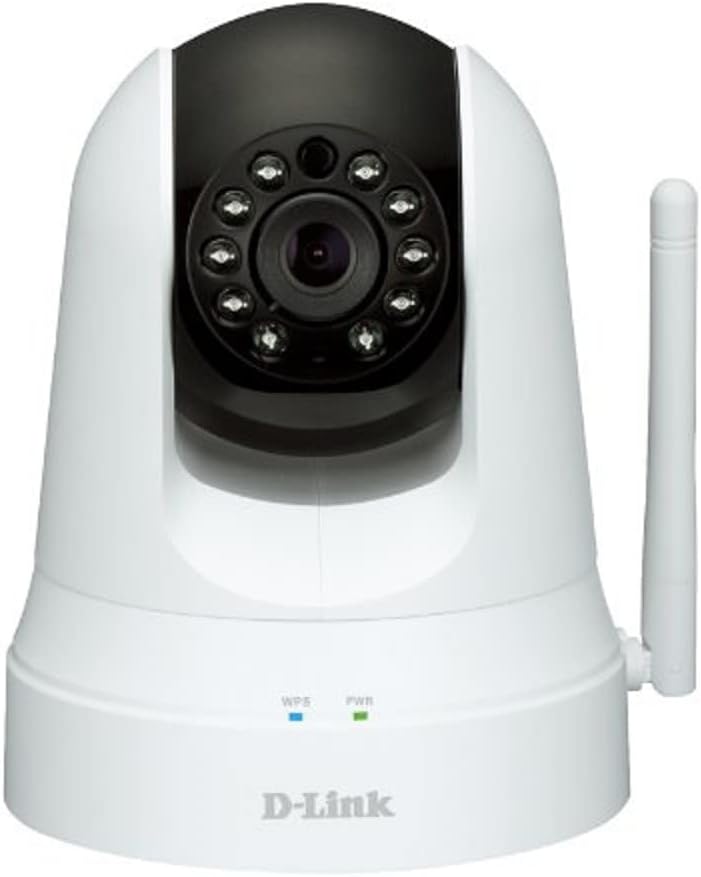
Figura 2.1: Față view of the D-Link DCS-5020L camera. It features a white dome-shaped body with a black pan/tilt head. The camera lens is surrounded by infrared LEDs for night vision. Below the head, on the base, are indicators for WPS and Power, and a detachable antenna is visible on the right side.
3. Configurare și instalare
3.1. Plasare
Alegeți o locație care oferă ceea ce doriți viewing angle and is within range of your Wi-Fi network. The camera can be placed on a flat surface or mounted to a wall or ceiling using the provided mounting kit.
3.2. Pornire
- Conectați adaptorul de alimentare la portul de alimentare al camerei.
- Plug the power adapter into a wall outlet. The Power LED will illuminate.
3.3. Conexiune la rețea (Wi-Fi)
There are two primary methods to connect your camera to your Wi-Fi network:
3.3.1. Metoda WPS (Configurare protejată Wi-Fi)
- Ensure your Wi-Fi router supports WPS.
- Press the WPS button on your D-Link camera. The WPS LED will blink.
- În decurs de două minute, apăsați butonul WPS de pe routerul Wi-Fi.
- Wait for the WPS LED on the camera to turn solid blue, indicating a successful connection.
3.3.2. Manual Setup via mydlink Lite App
- Download the free mydlink Lite app from the App Store (iOS), Google Play (Android), or Windows Phone Store.
- Open the app and create a mydlink account if you don't have one.
- Follow the on-screen instructions in the app to add your new camera. You will typically scan a QR code on the camera or manually enter its setup information.
- Aplicația vă va ghida prin conectarea camerei la rețeaua Wi-Fi.
4. Instrucțiuni de utilizare
4.1. Accessing Your Camera
The primary way to operate your D-Link camera is through the mydlink Lite app or the mydlink web portal (www.mydlink.com).
4.2. Controlul panoramicării și înclinării
Within the mydlink app, you can remotely control the camera's pan (horizontal) and tilt (vertical) movements to view different areas. The camera offers 340° pan and 120° tilt capability.
4.3. Zoom digital
Use the digital zoom feature (up to 4x) in the app to get a closer look at specific details within the camera's view.
4.4. Vedere de noapte
The camera automatically switches to night vision mode in low-light conditions, providing clear black-and-white video up to 26 feet (8 meters).
4.5. Detectarea mișcării și a sunetului
Configure motion and sound detection settings in the mydlink app. When motion or sound is detected, the camera can send instant push notifications to your connected device, allowing you to stay informed of events.
Video 4.1: Un overview of D-Link Wi-Fi Cameras, demonstrating their use for home security and monitoring. The video highlights features like remote viewing via mobile app, instant alerts for motion/sound detection, and ease of DIY installation. It shows scenarios such as monitoring children arriving home and receiving alerts about pets.
5. Întreținere
To ensure optimal performance and longevity of your D-Link camera, follow these maintenance guidelines:
- curatenie: Gently wipe the camera lens and body with a soft, dry, lint-free cloth. Do not use liquid cleaners or aerosol sprays.
- Actualizări firmware: Regularly check for and install firmware updates through the mydlink app or web portal. Updates often include performance improvements and security enhancements.
- Stabilitatea rețelei: Ensure your Wi-Fi network is stable and strong to prevent connection drops and ensure continuous monitoring.
- Alimentare electrică: Folosiți doar adaptorul de alimentare original furnizat împreună cu camera.
6. Depanare
| Problemă | Soluție posibilă |
|---|---|
| Camera nu se conectează la Wi-Fi. |
|
| No video feed in mydlink app. |
|
| Motion/Sound alerts not received. |
|
| Pan/Tilt control is unresponsive. |
|
7. Specificații
| Caracteristică | Detaliu |
|---|---|
| Numele modelului | DCS-5020L |
| Marca | D-Link |
| Rezoluție captură video | 480p |
| Pan/Tilt Capability | Panare 340°, înclinare 120° |
| Zoom digital | 4x |
| Gama de vedere nocturnă | 26 picioare (8 metri) |
| Tehnologia de conectivitate | Wireless (Wi-Fi) |
| Sursa de alimentare | AC/DC Adapter (12 Volts, 1 Watt) |
| Dispozitive compatibile | Smartphone, Tablet (iOS, Android, Windows Phone) |
| Caracteristici speciale | Motion Sensor, Sound Detection, Night Vision, Wi-Fi Extender |
| Dimensiuni (L x l x H) | 4.03 x 4.54 x 5.26 inci |
| Greutatea articolului | 0.64 lire sterline (10.2 uncii) |
| Culoare | Alb |
| Evaluarea internațională de protecție | IP65 |
8. Garanție și asistență
For warranty information and technical support, please refer to the D-Link official website or contact D-Link customer service. Keep your purchase receipt for warranty claims.
Asistență D-Link Website: support.dlink.com
Ask a question about this manual
Ask about setup, troubleshooting, compatibility, parts, safety, or missing instructions. Manuals+ will review the question and use this page’s manual context to help answer it.