
1. Produs terminatview
The D-Link AC1200 Wi-Fi Router (DIR-850L) delivers next-generation wireless speed and coverage to all your Wi-Fi devices. With wireless dual-band speeds of 300 Mbps (2.4 GHz) and 867 Mbps (5 GHz), the DIR-850L avoids interference to deliver fast wireless speeds, improved coverage, and reliable connections. This router is ideal for streaming HD video, gaming, connecting multiple devices, and watching shows on your TV simultaneously. The DIR-850L is also backward compatible with existing wireless 802.11a/g/n devices for seamless connectivity. D-Link’s free mobile apps provide easy setup, remote monitoring, and access to content from anywhere on your smartphone or tablet.
Caracteristici cheie:
- Next Generation Wireless Technology: Wireless AC1200 for optimized performance and reliable coverage, delivering high-quality HD video streaming, gaming, and file transferuri.
- Compatibilitate inversă: Compatible with wireless 802.11a/g/n devices.
- Conectivitate cu mai multe dispozitive: Connect more devices with four Gigabit Ethernet ports.
- Partajare media: Stream and share files using the USB Share Port and free mobile app.
- Configurare ușoară: Intelligent browser wizard and Quick Router Setup Mobile app for simplified installation.
- Securitate avansată: Preset security with advanced WPA2 encryption.
2. Conținutul pachetului
Ensure all items are present in your D-Link DIR-850L package:
- D-Link Wireless AC 1200 Dual-Band Gigabit Router (DIR-850L)
- Adaptor de alimentare
- Cablu Ethernet
- Ghid de instalare rapidă
Dacă lipsesc sau sunt deteriorate articole, vă rugăm să contactați distribuitorul sau serviciul de asistență D-Link.
3. Hardware terminatview
Familiarize yourself with the physical components and indicators of your DIR-850L router.

Figura 3.1: Față View. Shows the cylindrical design of the router with the D-Link logo and LED indicators for Power and Internet status.

Figura 3.2: lateral View. Illustrates the side of the router, highlighting the USB port for storage sharing and the Wi-Fi Protected Setup (WPS) button.
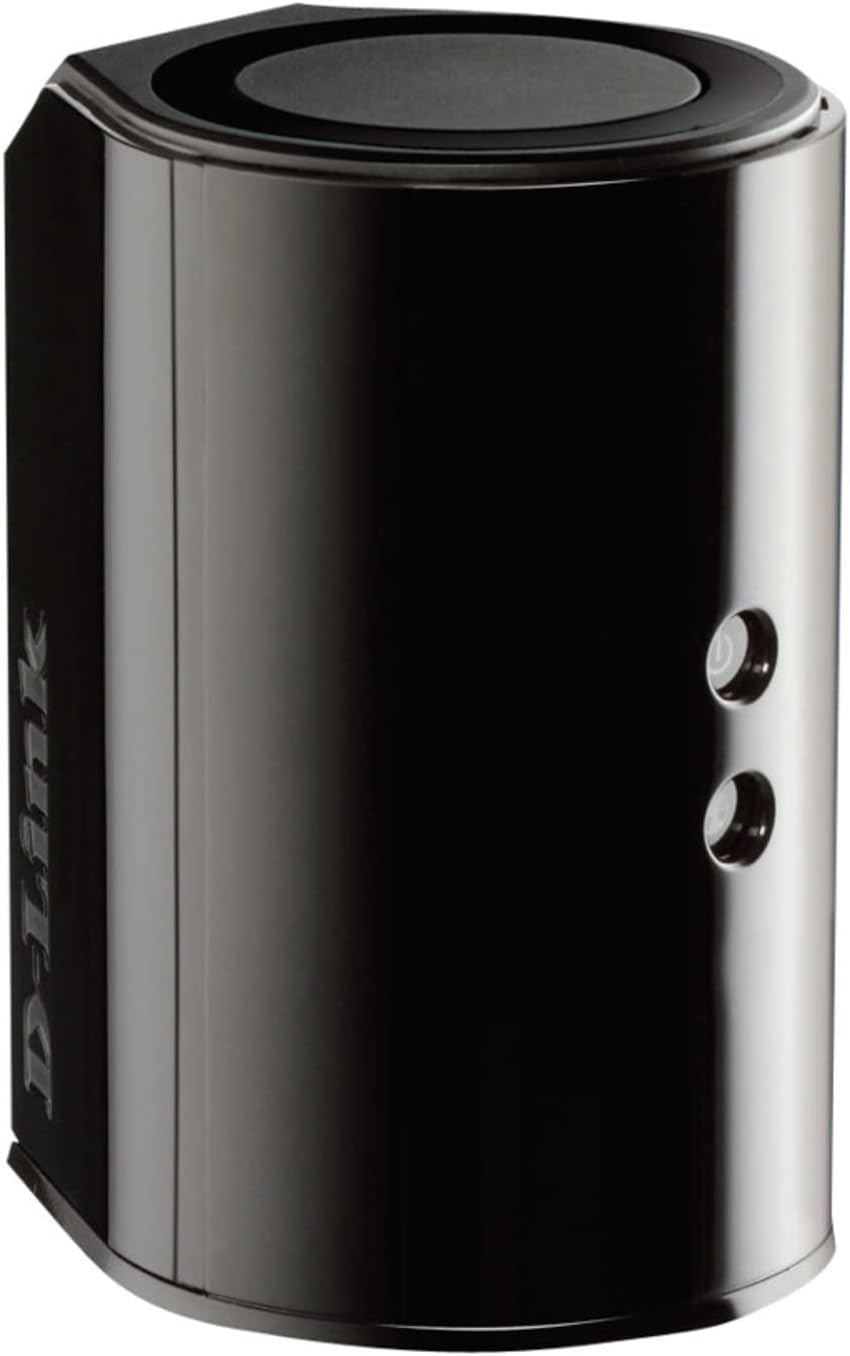
Figura 3.3: Spate View. Displays the back panel of the router, featuring the WAN (Internet) port, four LAN (Ethernet) ports, and the power input connector.
Indicatoare LED:
- LED de alimentare: Solid green indicates the router is powered on. Blinking green indicates a firmware upgrade or reset.
- LED Internet: Solid green indicates a successful connection to the internet. Blinking green indicates data activity. Amber indicates no internet connection.
Porturi și butoane:
- WAN (Internet) Port: Se conectează la modem pentru acces la internet.
- Porturi LAN (1-4): Connect wired devices such as computers, gaming consoles, or network storage.
- Port USB: Connect a USB storage device for network sharing.
- Stecher: Se conectează la adaptorul de alimentare inclus.
- Buton de resetare: Apăsați și mențineți apăsat timp de 10 secunde pentru a restabili setările implicite din fabrică.
- Butonul WPS: Initiates Wi-Fi Protected Setup for easy wireless connection of compatible devices.
4. Configurare
Follow these steps to set up your D-Link DIR-850L router:
- Poziționați routerul: Place your router in a central location in your home, away from obstructions and devices that may cause interference (e.g., cordless phones, microwaves).
- Conectare la modem:
- Opriți modemul.
- Connect one end of the provided Ethernet cable to the WAN (Internet) port on your DIR-850L router.
- Conectați celălalt capăt al cablului Ethernet la portul Ethernet al modemului.
- Pornire:
- Power on your modem and wait for its indicator lights to stabilize (usually indicating an active internet connection).
- Connect the power adapter to the power connector on your DIR-850L router and plug it into a power outlet.
- Wait for the Power LED on the router to turn solid green. The Internet LED should also turn green, indicating a successful connection.
- Conectați un dispozitiv:
- Conexiune prin cablu: Connect an Ethernet cable from one of the LAN ports (1-4) on the router to your computer's Ethernet port.
- Conexiune wireless: On your Wi-Fi enabled device (laptop, smartphone, tablet), search for available Wi-Fi networks. Select the network name (SSID) found on the Wi-Fi Configuration Card (usually a sticker on the bottom of the router) and enter the Wi-Fi password.
- Executați expertul de configurare:
- Deschide a web browser (e.g., Chrome, Firefox) on the connected device.
- Tip
http://dlinkrouter.localor192.168.0.1în bara de adrese și apăsați Enter. - Follow the on-screen instructions of the D-Link Setup Wizard to configure your internet connection and personalize your Wi-Fi network name (SSID) and password.
Setup Video (General D-Link Router Overview):
Video 4.1: D-Link Wireless AC 1200 Mbps Home Cloud App-Enabled Dual-Band Gigabit Router Overview. Acest videoclip oferă o imagine generalăview of D-Link routers, including the DIR-850L, and highlights their features and target users. While not a step-by-step setup guide, it offers insights into the router's capabilities.
5. Instrucțiuni de utilizare
Once your D-Link DIR-850L router is set up, you can manage and optimize your network.
Dispozitive de conectare:
- Fără fir: Use the Wi-Fi network name (SSID) and password you configured during setup to connect your wireless devices. The router supports both 2.4 GHz and 5 GHz bands.
- Cu fir: Connect devices directly to the LAN ports using Ethernet cables for a stable, high-speed connection.
Accesarea setărilor routerului:
To access advanced settings, open a web browser și navigați la http://dlinkrouter.local or 192.168.0.1. Log in with the administrator password you set during the initial setup. From here, you can:
- Schimbați setările Wi-Fi (SSID, parolă, tip de securitate).
- Configure guest Wi-Fi networks.
- Configurați controlul parental.
- Gestionați dispozitivele conectate.
- Actualizați firmware-ul.
Using the USB Share Port:
Plug a USB storage device (e.g., flash drive, external hard drive) into the USB port on the router. You can then access and share files on this storage device across your network using the D-Link SharePort Mobile app or through network shares on your computer.
6. Întreținere
Întreținerea regulată ajută la asigurarea performanței optime și a longevității routerului.
- Repornire: Reporniți periodic routerul (deconectați-l de la priză timp de 10 secunde, apoi conectați-l din nou) pentru a-i goli memoria și a reîmprospăta conexiunile de rețea. Acest lucru poate rezolva probleme minore de performanță.
- Actualizări firmware: Check the D-Link support website for firmware updates. Firmware updates can improve performance, add new features, and fix security vulnerabilities. Follow the instructions provided by D-Link carefully when performing updates.
- curatenie: Keep the router clean and free from dust. Use a soft, dry cloth to wipe the exterior. Do not use liquid cleaners or aerosols. Ensure ventilation openings are not blocked.
- Securitate: Regularly change your Wi-Fi password and router administrator password to enhance network security.
7. Depanare
If you encounter issues with your D-Link DIR-850L router, refer to the following common problems and solutions:
Fără conexiune internet:
- Verificați cablurile: Asigurați-vă că toate cablurile Ethernet sunt conectate în siguranță la router și modem.
- Stare modem: Verificați dacă modemul funcționează corect și are o conexiune activă la internet.
- Secvență de repornire: Opriți modemul, apoi routerul. Așteptați 30 de secunde, apoi porniți mai întâi modemul. După ce modemul este complet online, porniți routerul.
- ISP Contact: If the issue persists, contact your Internet Service Provider (ISP) to confirm service status.
Viteză Wi-Fi redusă:
- Plasarea routerului: Mutați routerul într-o locație mai centrală, departe de obstacole și surse de interferență.
- Interferență de canal: Conectați-vă la router web interface and try changing the Wi-Fi channel for both 2.4 GHz and 5 GHz bands to a less congested one.
- Dispozitive conectate: Disconnect unused devices from your network.
- Firmware: Asigurați-vă că firmware-ul routerului este actualizat.
Nu se poate conecta la Wi-Fi:
- Parolă corectă: Double-check that you are entering the correct Wi-Fi password (case-sensitive).
- Difuzare SSID: Ensure the router is broadcasting its Wi-Fi network name (SSID).
- WPS: If your device supports WPS, try using the WPS button on the router to connect.
- Resetare router: As a last resort, perform a factory reset (see Hardware Overview) and reconfigure the router.
8. Specificații
| Caracteristică | Descriere |
|---|---|
| Numele modelului | DIR-850L |
| Tip fără fir | 802.11ac (compatibil cu versiunile anterioare de 802.11a/b/g/n) |
| Clasa de bandă de frecvență | Dual-Band (2.4 GHz și 5 GHz) |
| Viteza wireless | Până la 300 Mbps (2.4 GHz), Până la 867 Mbps (5 GHz) |
| Porturi Ethernet | 4 x LAN Gigabit, 1 x WAN Gigabit |
| Port USB | 1 x USB 2.0 (for SharePort) |
| Tip antenă | Intern |
| Compatibilitatea sistemelor de operare | Windows® 8, 7, Vista®, XP SP2, or Mac OS® X (v10.4 or higher) |
| Dimensiuni (Lxlxh) | 4.45 x 3.43 x 5.72 inci |
| Greutatea articolului | 9.9 uncii (0.62 lire) |
| Culoare | Negru |
9. Garanție și asistență
D-Link products are backed by a limited warranty. For specific warranty terms and conditions, please refer to the warranty information included with your product or visit the official D-Link website-ul.
For technical support, product registration, and access to the latest drivers, firmware, and user manuals, please visit the D-Link support portal:
Asistență D-Link Website: www.dlink.com/support
You may also find helpful resources and community forums on the D-Link website-ul.