
1. Produs terminatview
The Sitecom WLA-5100 N600 Wi-Fi Dual Band USB Adapter provides wireless connectivity for your computer. It supports Wi-Fi 4 (802.11n) standards and operates on dual bands (2.4 GHz and 5 GHz) for optimal performance. This adapter connects via a USB interface, offering a convenient solution for adding or upgrading Wi-Fi capabilities to desktop or laptop computers.

Image 1: The Sitecom WLA-5100 N600 Wi-Fi Dual Band USB Adapter. This image shows the compact black USB adapter with the Sitecom logo, featuring a removable cap for the USB connector.
2. Conținutul pachetului
- 1 x Sitecom WLA-5100 N600 Wi-Fi Dual Band USB Adapter
- 1 x Quick Installation Guide (may vary by region)
- 1 x Driver CD (drivers may also be available for download online)
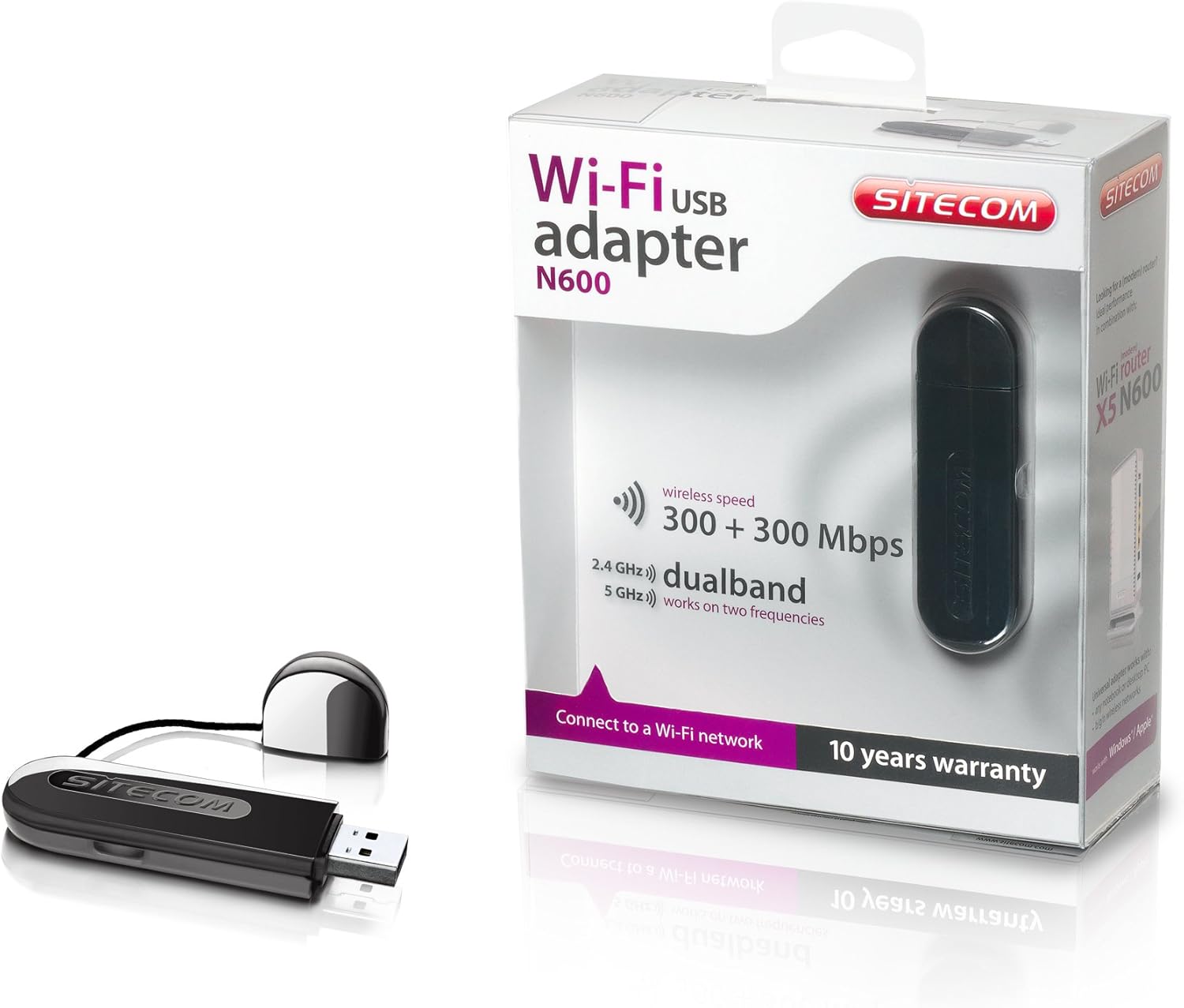
Image 2: The Sitecom WLA-5100 N600 Wi-Fi Dual Band USB Adapter shown alongside its retail packaging. The packaging highlights features such as wireless speed (300 + 300 Mbps) and dual-band functionality (2.4 GHz and 5 GHz).
3. Cerințe de sistem
- Port USB disponibil (se recomandă USB 2.0 sau o versiune ulterioară)
- Operating System: Compatible with Windows and Mac OS X (e.g., Mac OS X 10.8 Mountain Lion and later versions).
- Internet connection for driver download (if not using the included CD).
4. Configurare
4.1 Instalarea driverului
- Before inserting the adapter, it is recommended to install the necessary drivers.
- Insert the included Driver CD into your computer's optical drive, or download the latest drivers from the official Sitecom support website-ul.
- Urmați instrucțiunile de pe ecran pentru a finaliza procesul de instalare a driverului.
4.2 Instalare hardware
- Carefully insert the Sitecom WLA-5100 USB adapter into an available USB port on your desktop or laptop computer.
- Ensure the adapter is fully seated in the USB port. The operating system should detect the new hardware.
4.3 Conectarea la o rețea Wi-Fi
- Once the drivers are installed and the adapter is connected, your computer should detect available wireless networks.
- Access your operating system's network settings (e.g., Wi-Fi icon in the system tray for Windows, Wi-Fi menu bar item for macOS).
- Select your desired Wi-Fi network (SSID) from the list of available networks.
- Introduceți cheia de securitate a rețelei (parola) dacă vi se solicită, apoi faceți clic pe „Conectare”.
- Calculatorul tău ar trebui să fie acum conectat la rețeaua Wi-Fi.
5. Operare
The WLA-5100 adapter supports dual-band operation, allowing connection to both 2.4 GHz and 5 GHz Wi-Fi networks. The 2.4 GHz band offers wider coverage and better penetration through obstacles, while the 5 GHz band provides faster speeds and less interference, making it ideal for activities like online gaming and high-definition video streaming.
Your computer's operating system will automatically detect and display available networks on both bands. You can choose which band to connect to based on your proximity to the router and your performance needs. For optimal performance, connect to a 5 GHz network if available and you are in close range to your router.
6. Întreținere
- Păstrați adaptorul curat și fără praf. Folosiți o cârpă moale și uscată pentru curățare.
- Evitați expunerea adaptorului la temperaturi extreme, lumina directă a soarelui sau umiditate.
- Nu încercați să dezasamblați sau să modificați dispozitivul, deoarece acest lucru va anula garanția și poate provoca deteriorări.
- When not in use, store the adapter in a safe place to prevent physical damage.
7. Depanare
7.1 Fără conexiune Wi-Fi
- Verificați conexiunea adaptorului: Ensure the adapter is securely plugged into a functional USB port. Try a different USB port.
- Verificați instalarea driverului: Confirm that the drivers are correctly installed. Check your computer's Device Manager (Windows) or System Information (macOS) to see if the adapter is listed without errors. Reinstall drivers if necessary.
- Starea routerului: Ensure your Wi-Fi router is powered on and broadcasting a signal.
- Network Range: Make sure your computer is within range of your Wi-Fi network.
- Reporniți computerul: Uneori, o simplă repornire poate rezolva problemele de conectivitate.
7.2 Viteză redusă de conectare
- Selecție de trupă: If available, connect to the 5 GHz network for faster speeds, especially if you are close to the router.
- Interferență: Move the adapter or computer away from potential sources of interference (e.g., microwaves, cordless phones, Bluetooth devices).
- Actualizare driver: Ensure you have the latest drivers installed for the adapter.
- Performanța routerului: Check your router's settings and ensure it is operating optimally.
7.3 Adaptorul nu este recunoscut
- Port USB: Încearcă să conectezi adaptorul la un alt port USB al computerului.
- Reinstalați driverele: Uninstall existing drivers and perform a clean reinstallation.
- Actualizări ale sistemului de operare: Asigurați-vă că sistemul de operare este actualizat.
8. Specificații
| Caracteristică | Detaliu |
|---|---|
| Marca | Sitecom |
| Model | WLA-5100 |
| Tehnologia de conectivitate | Fără fir |
| Interfață gazdă | USB |
| standard wireless | IEEE 802.11a, 802.11b, 802.11g, 802.11n (Wi-Fi 4) |
| Viteza wireless | Up to 300 Mbps (2.4 GHz) + 300 Mbps (5 GHz) |
| Banda de frecventa | Bandă dublă (2.4 GHz și 5 GHz) |
| Culoare | Negru |
| Dimensiuni (L x l x H) | 7.5 x 2.5 x 1 cm (aproximativ) |
| Greutate | 10 g |
| Sursa de alimentare | USB Powered |
| Dispozitive compatibile | Desktop computer, Laptop computer |
| Numărul articolului comercial global (GTIN) | 08716502026821 |
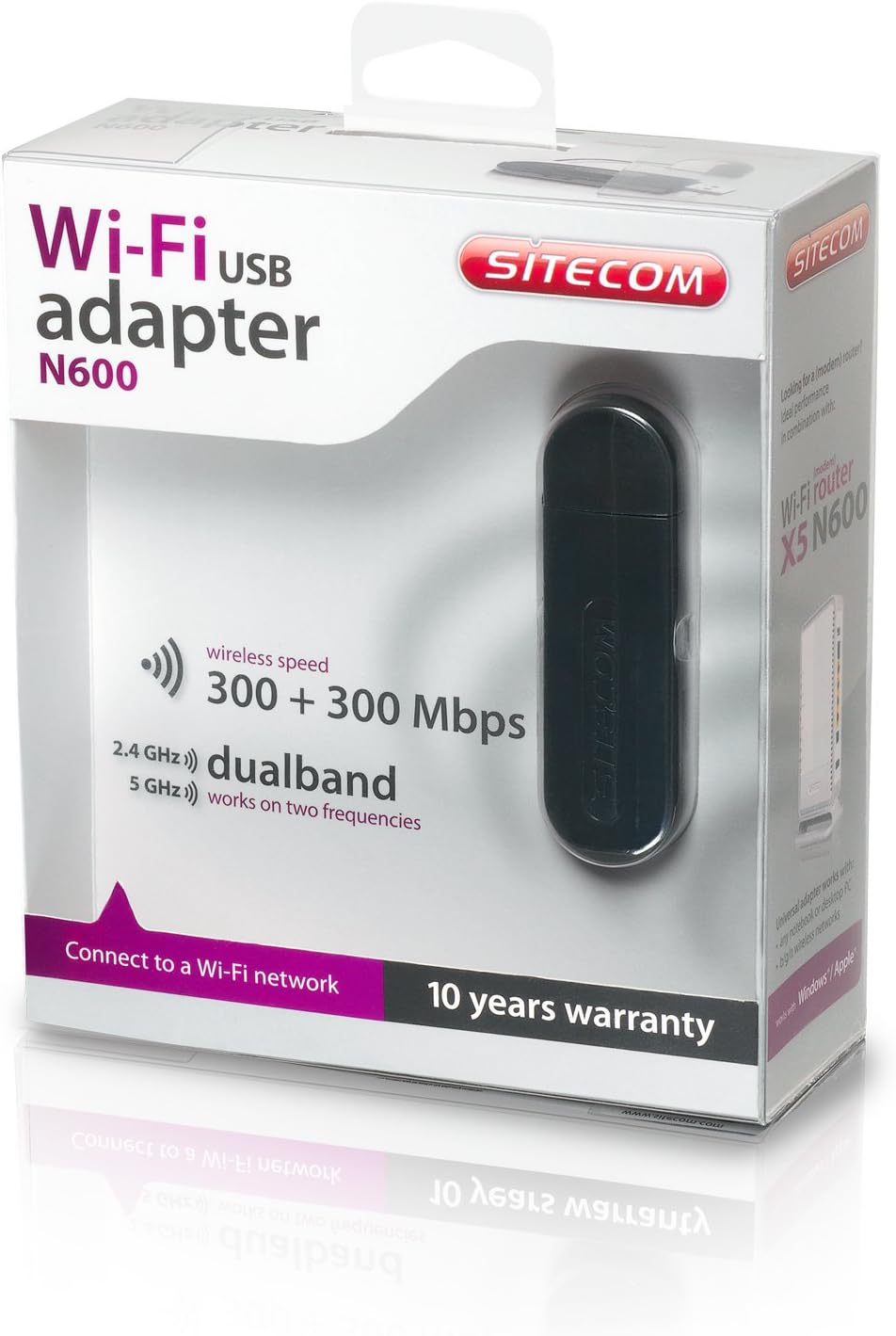
Image 3: The retail packaging for the Sitecom WLA-5100 N600 Wi-Fi Dual Band USB Adapter. The box prominently displays the product name, N600 rating, wireless speed, and dual-band capabilities.
9. Garanție și asistență
The Sitecom WLA-5100 N600 Wi-Fi Dual Band USB Adapter typically comes with a 10 an garanție, as indicated on the product packaging. Please retain your proof of purchase for warranty claims.
For technical support, driver downloads, frequently asked questions, or further assistance, please visit the official Sitecom website or contact their customer support. Refer to the packaging or the Sitecom website-ul pentru cele mai recente informații de contact pentru asistență.