
D-Link DIR-636L
Manual de utilizare pentru routerul Gigabit D-Link Wireless N 300 Mbps Home Cloud cu aplicație (DIR-636L)
Model: DIR-636L
Introducere
This manual provides comprehensive instructions for setting up, operating, and maintaining your D-Link Wireless N 300 Mbps Home Cloud App-Enabled Gigabit Router (DIR-636L). Please read this manual thoroughly before using the device to ensure optimal performance and safety.
Ce este în cutie
- D-Link Cloud Router 1200 (DIR-636L)
- Cablu Ethernet
- Adaptor de alimentare
- Ghid de instalare rapidă
Produs terminatview


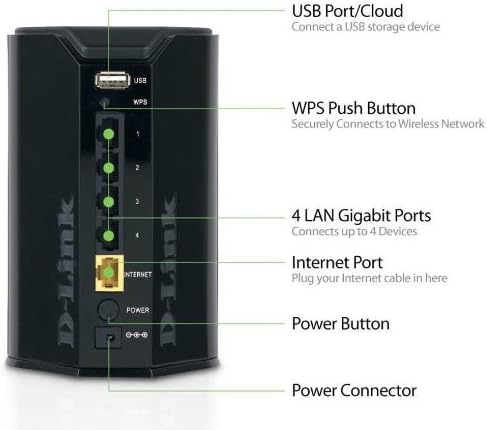
The D-Link DIR-636L Cloud Router is designed for high-performance wireless connectivity and network management. It features a compact, vertical design with indicator lights on the front and all connectivity ports on the rear for efficient cable management.
Înființat
Instalare inițială
- Despachetați routerul: Scoateți cu grijă toate componentele din cutie.
- Poziționați routerul: Place the router in a central location in your home for optimal wireless coverage. Avoid placing it near large metal objects or other electronic devices that may cause interference.
- Conectați modemul: Connect one end of the provided Ethernet cable to the Internet port (yellow) on the back of the DIR-636L router and the other end to your modem's Ethernet port.
- Conectare alimentare: Plug the power adapter into the router's power connector and then into a wall outlet. The power LED on the front of the router should illuminate.
- Pornire: Press the power button on the back of the router. Wait for the Internet LED to turn solid green, indicating a successful connection.
Configurare prin Web Browser
- Conectați-vă la router: Connect your computer to one of the LAN Gigabit ports (1-4) on the router using an Ethernet cable, or connect wirelessly to the default Wi-Fi network (SSID and password are on a label on the router).
- Expertul de configurare a accesului: Deschide a web browser și tip http://dlinkrouter.local or http://192.168.0.1 în bara de adrese.
- Urmați instrucțiunile de pe ecran: The D-Link Setup Wizard will guide you through configuring your Internet connection, wireless network name (SSID), and password.
Configuration via QRS Mobile App
For quick setup using your smartphone or tablet, download the free D-Link QRS Mobile app from your device's app store. The app will guide you through the setup process step-by-step.
Operarea routerului
Conectivitate wireless
The DIR-636L provides wireless speeds up to 300 Mbps, ideal for video streaming and web surfing. Its built-in high-powered amplifier ensures wall-to-wall coverage throughout your home.
Connecting Devices Wirelessly:
- Conexiune standard: On your device, select your Wi-Fi network name (SSID) and enter the password you configured during setup.
- WPS (Configurare protejată prin Wi-Fi): Press the WPS button on the back of the router (labeled "WPS") and then activate WPS on your wireless device within two minutes to establish a secure connection without entering a password.
Conectivitate prin cablu
The router features four Gigabit Ethernet ports for blazing fast wired connections. These are ideal for gaming consoles, smart TVs, desktop computers, and other devices requiring stable, high-speed connections.
SharePort Mobile App
Utilize the free D-Link SharePort Mobile app to wirelessly access media files (videos, music, photos) stored on a USB drive connected to the router's USB 2.0 port. This allows you to stream content directly to your iPhone, iPad, or Android device.
Official D-Link video demonstrating the features of the Wireless-N300 Dual-Band Gigabit Cloud Router, including wireless file sharing and network monitoring capabilities.
mydlink Cloud Services
The mydlink app allows you to monitor and manage your home network remotely from your iPhone, iPad, or Android device. You can view web browsing history, see connected and blocked devices in real-time, and receive automatic email alerts for unauthorized connections.
Întreţinere
- Reporniri regulate: Periodically rebooting your router (unplugging and replugging the power) can help clear its memory and improve performance. A monthly reboot is generally sufficient.
- Actualizări firmware: Check the D-Link support website pentru actualizări de firmware. Menținerea firmware-ului routerului la zi asigură performanță optimă, securitate și acces la funcții noi.
- Curățare fizică: Keep the router clean and free of dust to prevent overheating. Use a soft, dry cloth.
- Securitate: Schimbați periodic parola Wi-Fi și datele de conectare la router. Folosiți parole puternice și unice.
Depanare
Fără conexiune la internet
- Verificați cablurile: Asigurați-vă că toate cablurile Ethernet sunt conectate în siguranță la porturile corecte de pe router și modem.
- Reporniți dispozitivele: Power cycle your modem first, wait 30 seconds, then power cycle your router. Wait for all indicator lights to stabilize.
- Problemă cu furnizorul de servicii de internet: Contactați furnizorul de servicii de internet (ISP) pentru a confirma că nu există servicii disponibile.tageste în zona dvs.
Slow Wireless Speed or Poor Coverage
- Plasarea routerului: Move the router to a more central location, away from obstructions like thick walls, large metal objects, or other electronics.
- Interferență: Other wireless devices (cordless phones, microwaves) can cause interference. Try changing your Wi-Fi channel in the router settings.
- Prea multe dispozitive: If many devices are connected, consider upgrading to a higher-speed router or optimizing network usage.
Nu se poate accesa pagina de configurare a routerului
- Adresa IP: Asigurați-vă că computerul este configurat să obțină automat o adresă IP (DHCP).
- Adresă corectă: Double-check that you are typing the correct address (http://dlinkrouter.local or http://192.168.0.1).
- Firewall/Antivirus: Dezactivați temporar orice firewall sau software antivirus de pe computerul dvs. care ar putea bloca accesul.
- Resetare din fabrică: As a last resort, perform a factory reset by pressing and holding the reset button on the router for 10 seconds. Notă: Această acțiune va șterge toate setările personalizate.
Specificații
| Caracteristică | Detaliu |
|---|---|
| Numele modelului | DIR-636L |
| Tip fără fir | 802.11bgn |
| Viteza wireless | Până la 300 Mbps |
| Porturi Ethernet | 4 x Gigabit Ethernet |
| Porturi USB | 1 x USB 2.0 |
| Securitate | Wi-Fi Protected Access (WPA/WPA2), WPS |
| IPv6 Certified | Da |
| Dimensiuni (Lxlxh) | 4.5 x 3.8 x 5.5 inci |
| Greutatea articolului | 9.9 uncii |
| Sisteme de operare compatibile | Windows 7, Windows Vista, Windows XP SP2, Mac OS X (v10.4) |
Garanție și suport
The D-Link Wireless N 300 Mbps Home Cloud App-Enabled Gigabit Router (DIR-636L) comes with a Garanție limitată de 1 an. D-Link also provides 24/7 basic installation support.
For further assistance, technical support, or to check for the latest firmware updates, please visit the official D-Link support website-ul sau contactați serviciul pentru clienți.
Note: Warranty terms may vary by region. Please refer to the warranty card included with your product or the D-Link website pentru detalii specifice.
Ask a question about this manual
Ask about setup, troubleshooting, compatibility, parts, safety, or missing instructions. Manuals+ will review the question and use this page’s manual context to help answer it.