
1. Introducere
The SteelSeries Kana Optical Gaming Mouse is engineered for precision and versatility, designed to accommodate all three primary grip styles: palm, claw, and fingertip. This ambidextrous mouse features an ergonomic button layout and size, developed in collaboration with professional gaming teams to ensure consistent performance and accuracy in competitive environments. This manual provides comprehensive instructions for setup, operation, maintenance, and troubleshooting to help you maximize your gaming experience.
2. Conținutul pachetului
- SteelSeries Kana Optical Gaming Mouse (White)
- Quick Start Guide (integrated into this manual)
3. Produs terminatview
Familiarize yourself with the key components of your SteelSeries Kana mouse:
- Butonul stânga pentru clic: Buton de acțiune principală.
- Buton clic dreapta: Buton de acțiune secundară.
- Rotiță de defilare: For scrolling and a clickable middle button. The scroll wheel is illuminated.
- CPI Toggle Button: Located centrally, allows quick switching between sensitivity settings.
- Butoane laterale (x2): One on each side, large and easily accessible for rapid-fire actions. These can be customized or disabled via software.
- Senzor optic: Situat pe partea inferioară, oferă o urmărire precisă.
- Conector USB: For connecting the mouse to your computer.
- Braided Cable: Durable, tangle-free nylon cord.
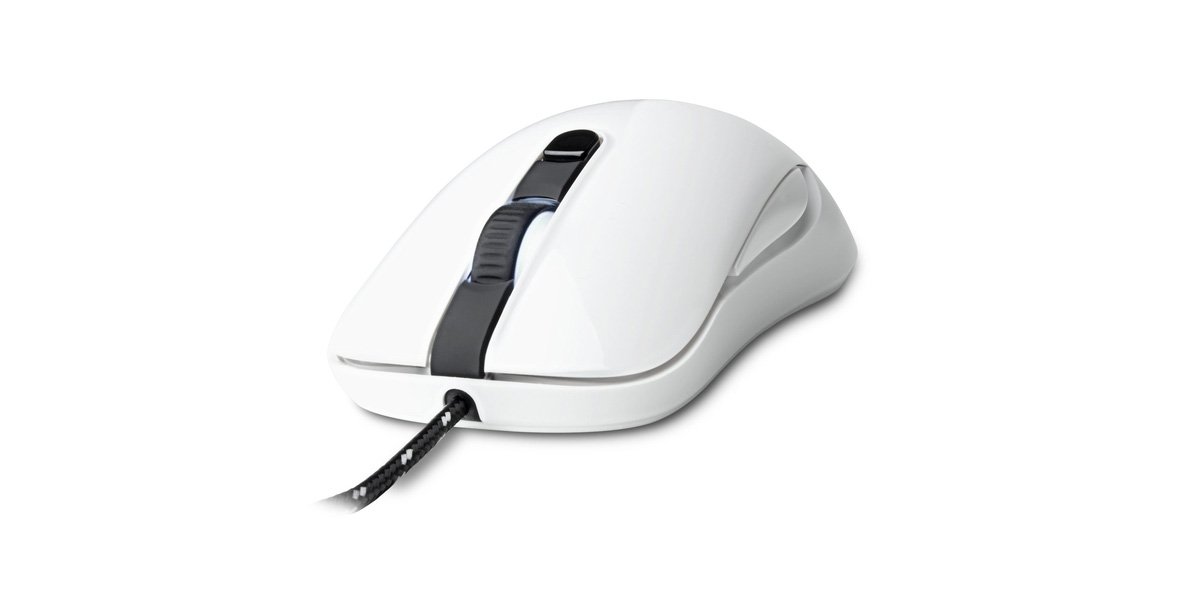
Image of the SteelSeries Kana Optical Gaming Mouse in white, showcasing its ambidextrous design, illuminated scroll wheel, and side buttons.
4. Configurare
4.1 Conexiune hardware
- Găsiți un port USB disponibil pe computer.
- Plug the USB connector of the SteelSeries Kana mouse into the USB port.
- Your operating system should automatically detect and install basic drivers for the mouse.
4.2 Software Installation (SteelSeries Engine)
To unlock the full customization potential of your SteelSeries Kana mouse, including CPI settings, button programming, macros, and LED intensity, install the SteelSeries Engine software.
- Vizitați SteelSeries-ul oficial website: steelseries.com/engine
- Download the SteelSeries Engine software compatible with your operating system (Windows or macOS).
- Urmați instrucțiunile de pe ecran pentru a finaliza instalarea.
- Once installed, launch the SteelSeries Engine to configure your mouse settings.
Notă pentru utilizatorii de Mac: Compatibility with macOS versions 10.9 and later for SteelSeries Engine 2.0 (required for Kana) has historically been inconsistent. Please check the official SteelSeries website for the latest software updates and compatibility information before installation.
5. Instrucțiuni de utilizare
5.1 Funcționalitate de bază
- Circulaţie: Mișcați mouse-ul pe o suprafață pentru a controla cursorul pe ecran.
- Făcând clic: Folosește butoanele stânga și dreapta pentru acțiuni principale și secundare.
- Derulare: Rotate the scroll wheel to navigate documents and web pages. Press the scroll wheel for its assigned middle-click function.
5.2 Adjusting CPI (Counts Per Inch)
The centrally located CPI toggle button allows you to switch between two pre-defined sensitivity settings instantly. The default CPI settings are optimized for gaming, but can be customized using the SteelSeries Engine software. The maximum CPI supported is 3200.
- Press the CPI toggle button once to switch to the alternate CPI setting.
- Press it again to revert to the previous setting.
5.3 Customizing with SteelSeries Engine
The SteelSeries Engine software provides extensive customization options:
- CPI Settings: Fine-tune or set custom CPI values beyond the pre-defined options.
- Programare butoane: Assign custom functions, keyboard shortcuts, or macros to any of the 6 programmable buttons (including side buttons and scroll wheel click).
- Macrocomenzi: Create and assign complex sequences of commands with precise timing control.
- Intensitatea LED-ului: Adjust the brightness of the illuminated scroll wheel.
- Profiles: Creați și salvați mai multe profesioniștifiles for different games or applications, with automatic switching based on game triggers.
6. Întreținere
6.1 Cleaning Your Mouse
To ensure optimal performance and longevity, keep your mouse clean.
- Exterior: Folosiți o cârpă moale, fără scame dampClătiți cu apă sau cu o soluție de curățare delicată pentru a șterge suprafața mouse-ului. Evitați substanțele chimice dure sau materialele abrazive.
- Senzor optic: Gently clean the optical sensor lens on the underside of the mouse with a dry cotton swab or compressed air to remove dust or debris.
- Picioarele mouse-ului: Ensure the mouse feet are clean and free of obstructions for smooth gliding.
Atenţie: Do not immerse the mouse in water or any cleaning solution. Avoid spraying liquids directly onto the mouse.
7. Depanare
| Problemă | Soluție posibilă |
|---|---|
| Mouse not detected / Not responding |
|
| Inaccurate or erratic tracking |
|
| Buttons not responding or performing incorrectly |
|
| SteelSeries Engine software not recognizing mouse (Mac OS) |
|
8. Specificații
| Marca | SteelSeries |
| Numărul de model | 62029 |
| Culoare | Alb |
| Tehnologia de detectare a mișcării | Optic |
| Numărul de butoane | 6 (programabile) |
| Orientarea mâinii | Ambidextrous (Left, Right) |
| Platformă hardware | PC |
| Tip cablu | Nailon împletit |
| Greutatea articolului | 0.16 kilograme |
| Caracteristica specială | Ergonomic Design, Illuminated Scroll Wheel |
9. Garanție și asistență
9.1 Informații despre garanție
The SteelSeries Kana Optical Gaming Mouse comes with a Garanție limitată de 1 an de la data achiziției. Această garanție acoperă defectele de fabricație și manoperă în condiții normale de utilizare. Nu acoperă daunele cauzate de utilizarea necorespunzătoare, accidente, modificări neautorizate sau uzură normală. Vă rugăm să păstrați dovada achiziției pentru reclamațiile în garanție.
9.2 Asistență pentru clienți
For technical assistance, warranty claims, or further information, please visit the official SteelSeries support website:
You can find FAQs, driver downloads, and contact information for customer service on their website-ul.