
1. Introducere
This manual provides instructions for the installation, operation, and maintenance of your D-Link DWA-123 Wireless N 150 USB Adapter. This device allows you to connect your desktop or notebook computer to a wireless network with speeds up to 150 Mbps, ideal for web navigare, file sharing, and streaming.
2. Produs terminatview
The D-Link DWA-123 is a compact USB adapter designed for easy integration into your computer system. It supports Wireless N 150 technology, offering enhanced speed and range compared to older wireless standards.
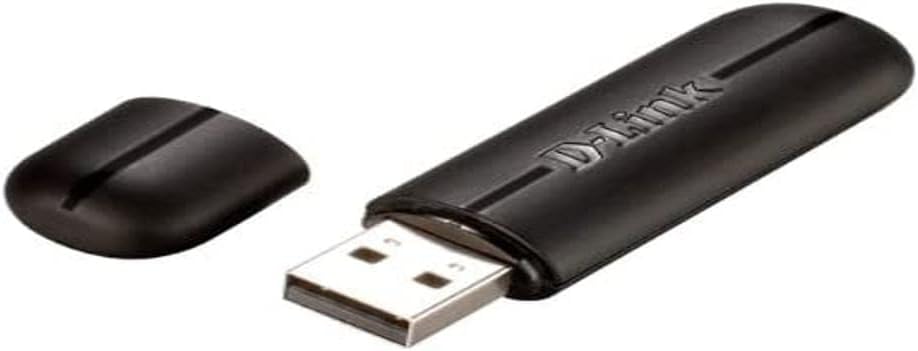
Figure 2.1: The D-Link DWA-123 Wireless N 150 USB Adapter. This image shows the adapter with its protective cap removed, revealing the standard USB Type-A connector. The D-Link logo is visible on the adapter's body.
Caracteristicile cheie includ:
- Wireless N 150 Technology: Provides faster wireless speeds and better coverage.
- Up to 150 Mbps Data Rate: Suitable for various internet activities.
- WPS External Button Design: Simplifies secure wireless connection setup.
- Securitate avansată: Supports WPA/WPA2 (PSK, AES, TKIP) and 128/64-bit WEP for secure network access.
- Frecventa de operare: 2.4 GHz până la 2.48 GHz.
- Standarde: IEEE 802.11 b/g/n compliant.

Figura 2.2: Prim-plan view of the D-Link DWA-123 adapter. This image highlights a small indicator light, typically used to show network activity or connection status.
Figura 2.3: Detaliat view of the D-Link DWA-123 adapter's casing. This image focuses on the textured surface and design elements of the adapter's black plastic housing.
3. Instrucțiuni de configurare
Follow these steps to install your D-Link DWA-123 Wireless N 150 USB Adapter:
- Introduceți adaptorul: Plug the DWA-123 USB adapter into an available USB port on your desktop or notebook computer. Ensure it is fully seated.
- Instalare driver:
- Automatic Installation (Windows): In most modern Windows operating systems, the necessary drivers may install automatically. Wait for a notification indicating that the device is ready for use.
- Instalare manuală: If drivers do not install automatically, you may need to use the included driver CD (if provided) or download the latest drivers from the official D-Link support website. Follow the on-screen instructions during the driver installation process.
- Verificați instalarea: After driver installation, check your computer's Device Manager (Windows) or System Information (macOS) to confirm that the DWA-123 adapter is recognized and functioning correctly.
4. Instrucțiuni de utilizare
Once the DWA-123 adapter is installed, you can connect to a wireless network:
- Accesați setările wireless:
- Windows: Click the wireless network icon in the system tray (usually in the bottom-right corner of the screen).
- MacOS: Click the Wi-Fi icon in the menu bar (usually in the top-right corner of the screen).
- Selecteaza reteaua: A list of available wireless networks will appear. Select your desired network (SSID).
- Conectare:
- Conexiune manuală: Enter the network security key or passphrase when prompted.
- WPS (Configurare protejată prin Wi-Fi): If your router supports WPS and has a WPS button, you can press the WPS button on your router and then press the WPS button on the DWA-123 adapter (if available, or follow software prompts) within two minutes to establish a secure connection automatically.
- Verificați conexiunea: Once connected, the wireless network icon will indicate a successful connection, and you should be able to access the internet.
5. Întreținere
To ensure optimal performance and longevity of your D-Link DWA-123 adapter:
- Păstra curat: Gently wipe the adapter with a soft, dry cloth to remove dust. Avoid using liquid cleaners or solvents.
- Protejați conectorul USB: When not in use, keep the protective cap on the USB connector to prevent dust and damage.
- Evitați condițiile extreme: Nu expuneți adaptorul la temperaturi extreme, umiditate sau lumina directă a soarelui.
- Actualizări ale driverului: Verificați periodic suportul D-Link website pentru drivere actualizate pentru a asigura compatibilitatea și îmbunătățirea performanței.
6. Depanare
If you encounter issues with your DWA-123 adapter, consider the following:
- Nicio rețea wireless detectată:
- Ensure the adapter is properly inserted into a USB port.
- Verify that the drivers are correctly installed.
- Check if your wireless router is powered on and broadcasting a signal.
- Try moving closer to the wireless router.
- Nu se poate conecta la rețea:
- Double-check the network security key or passphrase. It is case-sensitive.
- Restart your computer and the wireless router.
- Ensure your network is not configured to block new devices (e.g., MAC address filtering).
- Viteză mică de conectare:
- Asigurați-vă că vă aflați în raza optimă de acțiune a routerului wireless.
- Verificați dacă există interferențe de la alte dispozitive electronice (de exemplu, cuptoare cu microunde, telefoane fără fir).
- Update your adapter's drivers to the latest version.
- Verify that your router is configured for Wireless N mode if you expect 150 Mbps speeds.
7. Specificatii tehnice
| Caracteristică | Detaliu |
|---|---|
| Numărul de model | DWA-123 |
| standard wireless | IEEE 802.11b/g/n |
| Viteza wireless | Up to 150 Mbps (Wireless N 150) |
| Gama de frecvente | 2.4 GHz - 2.48 GHz |
| Securitate | WPA/WPA2 (PSK, AES, TKIP), 128/64-bit WEP, WPS |
| Interfață | USB 2.0 |
| Vol. De operaretage | 5V DC |
| Dimensiuni | Approximately 25.02 x 12.54 x 16.38 cm (Product dimensions from data, likely packaging) |
| Greutate | Aproximativ 100 g |
| Dispozitive compatibile | Desktop computers (and notebooks) |
8. Garanție și asistență
For warranty information and technical support, please refer to the documentation included with your product or visit the official D-Link website. D-Link provides various support resources, including FAQs, driver downloads, and contact information for technical assistance.
Suport online: www.dlink.com/support