
Introducere
This manual provides detailed instructions for the setup, operation, maintenance, and troubleshooting of your Intel Wireless Series Gamepad. Please read this manual thoroughly before using the device to ensure optimal performance and longevity.
Produs terminatview
The Intel Wireless Series Gamepad is designed for an enhanced gaming experience on your PC. It features a sleek wireless design, a 9-foot operating range, and supports multiplayer gaming by connecting up to four players without daisy-chaining. The gamepad also includes one-touch mouse emulation for versatile control.
Note: The Intel Wireless Series Gamepad requires an Intel Wireless Series Base Station (sold separately) for operation.

Figura 1: Față view of the Intel Wireless Series Gamepad, showcasing its ergonomic, blue and white design with control buttons.
Înființat
- Instalați stația de bază: Ensure your Intel Wireless Series Base Station is properly connected to your PC and powered on. Refer to the Base Station's manual for specific installation instructions.
- Introduceți bateriile: Open the battery compartment on the underside of the gamepad and insert the required batteries (not included), ensuring correct polarity.
- Instalați software-ul: Insert the Intel Wireless Series Gamepad installation CD into your computer's CD-ROM drive. Follow the on-screen prompts to install the necessary drivers and configuration software. In most cases, the software will install automatically upon disc insertion.
- Pair the Gamepad: Once the software is installed, follow the instructions within the software to pair your gamepad with the Base Station. This typically involves pressing a sync button on both the gamepad and the Base Station.
- Test de conexiune: After pairing, test the gamepad's functionality using the provided configuration utility or by launching a game.
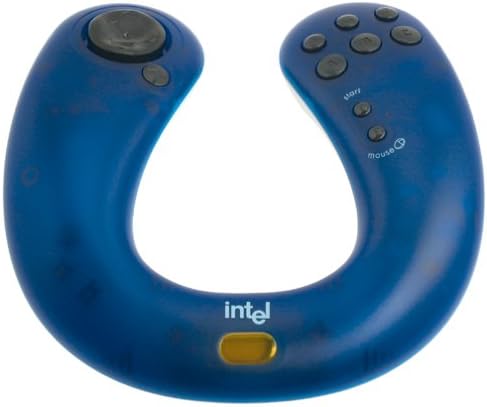
Figura 2: De sus în jos view of the Intel Wireless Series Gamepad, highlighting the button layout and the Intel logo.
Instrucțiuni de operare
Gamepad Controls
The Intel Wireless Series Gamepad features 12 programmable buttons and a directional pad (D-pad) for precise control during gameplay.
- Pad direcțional (D-pad): Folosit pentru mișcare direcțională în jocuri.
- Butoane de acțiune: Multiple buttons (e.g., A, B, X, Y or numbered buttons) for in-game actions.
- Shoulder Buttons/Triggers: Located on the top edge of the gamepad for additional actions.
- Start/Select Buttons: For pausing games, accessing menus, or other game-specific functions.
Emularea mouse-ului
The gamepad supports one-touch mouse emulation, allowing you to control your computer's cursor using the gamepad. This feature is activated via a dedicated button, typically labeled "Mouse" or similar. When activated, the D-pad or an analog stick (if present) will control cursor movement, and specific action buttons will function as left-click and right-click.
To optimize mouse movement speed, you may need to adjust your computer's mouse properties settings. Navigate to your operating system's control panel or system settings to modify pointer speed and acceleration.
Jocuri multiplayer
The Intel Wireless Series system supports connecting up to four gamepads simultaneously to a single Base Station. This allows for multiplayer gaming without the need for daisy-chaining multiple controllers. Ensure each gamepad is paired individually with the Base Station according to the setup instructions.
Întreţinere
- curatenie: Use a soft, dry cloth to clean the gamepad's surface. For stubborn dirt, slightly dampClătiți cârpa cu apă. Evitați utilizarea substanțelor chimice dure sau a produselor de curățare abrazive.
- Înlocuire baterie: Replace batteries when the gamepad's performance degrades or the low battery indicator (if present) illuminates. Always use the recommended battery type.
- Depozitare: Store the gamepad in a cool, dry place away from direct sunlight and extreme temperatures when not in use for extended periods. Remove batteries if storing for several months.
Depanare
- Gamepad not responding:
- Ensure the Base Station is powered on and properly connected to your PC.
- Check if the gamepad batteries are correctly inserted and have sufficient charge. Replace if necessary.
- Verify that the gamepad is properly paired with the Base Station. Re-pair if needed.
- Confirm that the necessary drivers and software are installed on your PC.
- D-pad feels loose or detaches:
Some users have reported issues with the D-pad becoming loose or detaching. If this occurs, carefully attempt to reattach it. If the issue persists, a small amount of adhesive may be used to secure it, taking care not to impede its movement or internal components. Contact support if the problem cannot be resolved.
- Mouse emulation cursor movement is too slow or fast:
Adjust the mouse pointer speed and acceleration settings within your computer's operating system. Access these settings through the Control Panel (Windows) or System Preferences (macOS).
- Issues with Windows XP or newer operating systems:
Older drivers may not fully support all features on Windows XP or newer operating systems, such as the mouse LCD picture or certain advanced functionalities. Ensure you have the latest available drivers from Intel's support website. If issues persist, some features may not be compatible with newer OS versions.
Specificații
| Caracteristică | Descriere |
|---|---|
| Marca | Intel |
| Model | Wireless Series Gamepad |
| Tehnologia de conectivitate | Fără fir |
| Dispozitive compatibile | Windows PC (Desktop Hardware Platform) |
| Tip controler | Gamepad |
| Culoare | Albastru |
| Cantitate de butoane | 12 |
| Sursa de alimentare | Alimentat cu baterie |
| Gamă | Gama wireless de 9 de picioare |
| Multiplayer Support | Connects up to 4 players (requires separate Base Station) |
| Caracteristici speciale | One-touch mouse emulation |
| UPC | 735858142540 |
| ASIN | B00005853O |
Informații despre garanție
The Intel Wireless Series Gamepad comes with a Garanție limitată de 1 an from the date of purchase. This warranty covers defects in materials and workmanship under normal use. It does not cover damage caused by accident, abuse, misuse, modification, or improper installation. Please retain your proof of purchase for warranty claims.
Asistență pentru clienți
For technical assistance, warranty claims, or further information regarding your Intel Wireless Series Gamepad, please visit the official Intel support website-ul sau contactați departamentul de servicii pentru clienți.
- Suport online: www.intel.com/support (Vă rugăm să rețineți: Acesta este un substituent) URL. Refer to your product packaging or Intel's official website for the most current support contact information.)
- Asistență telefonică: Refer to Intel's official website-ul pentru numerele de contact regionale.


